

Account settings control how Replygrow sends actions from a LinkedIn account: how many a day, when, and under which company. Open them by clicking Settings in the left menu. Settings apply per account.
Limits
Auto warm-up
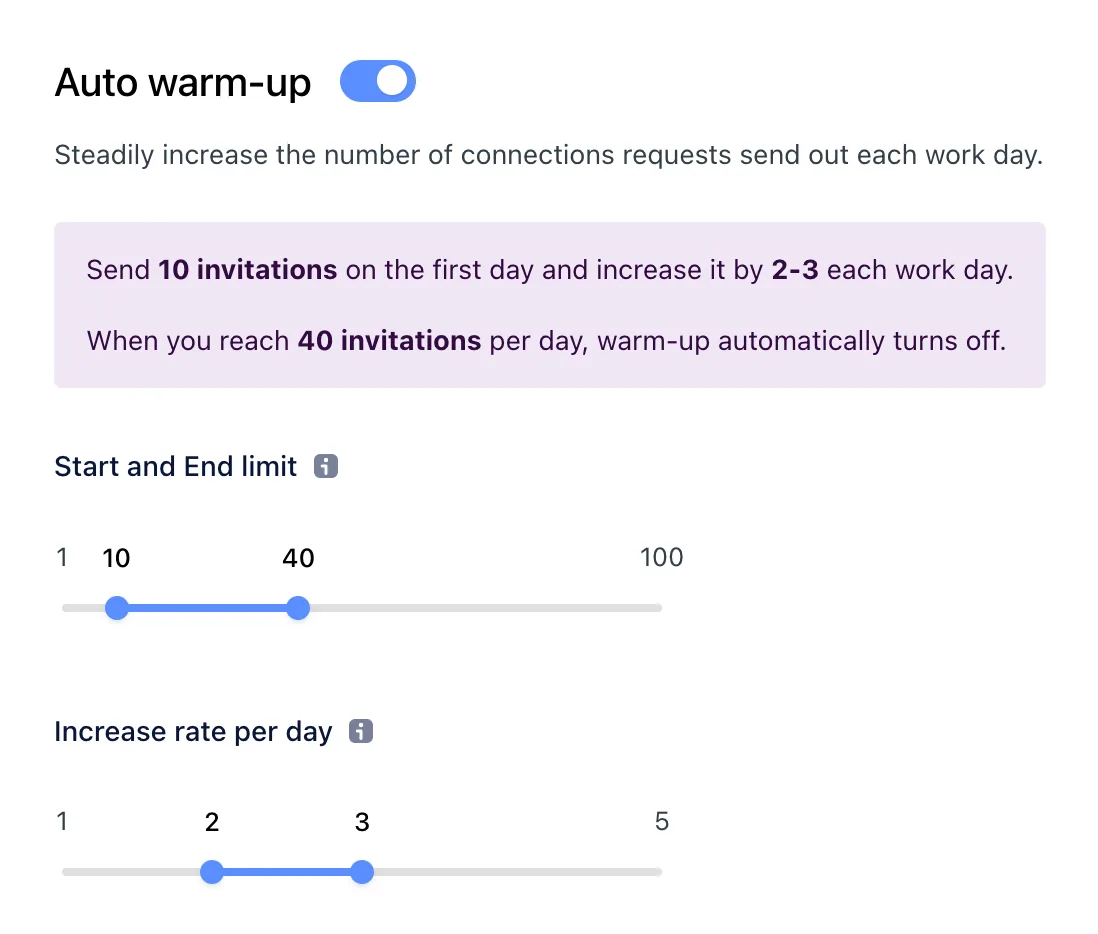
Warm-up raises the number of daily invitations step by step on a new account instead of starting at full volume. The default goes from 5 to 30 invitations a day over 14 days.
You can change the start limit, the end limit and the daily increase rate. When the end limit is reached, warm-up turns off.
Maximum limits
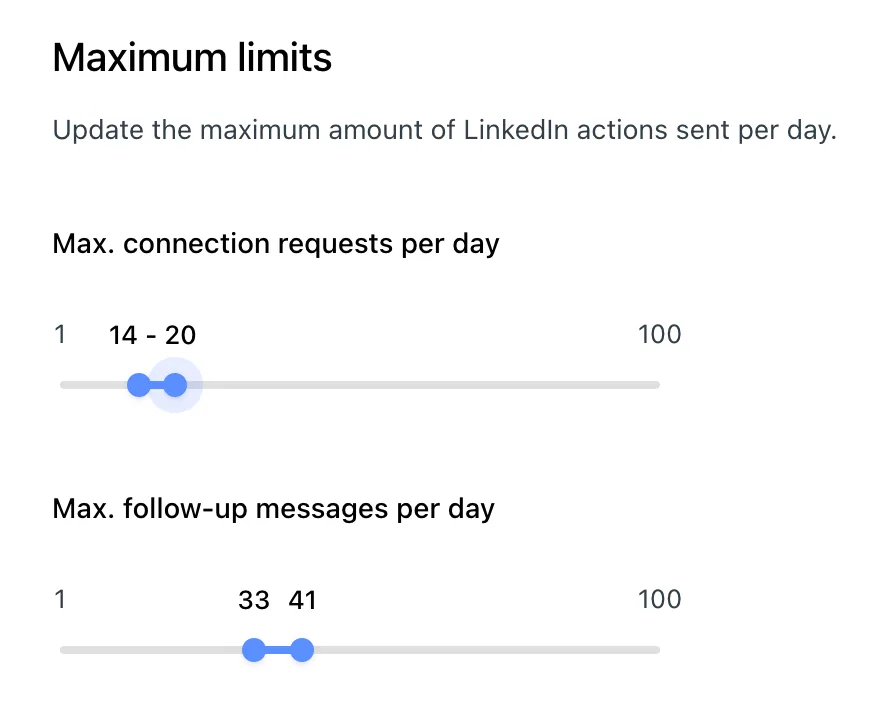
After warm-up, set the daily range for connection requests and follow-up messages. Replygrow picks a random number between the lower and upper value each day.
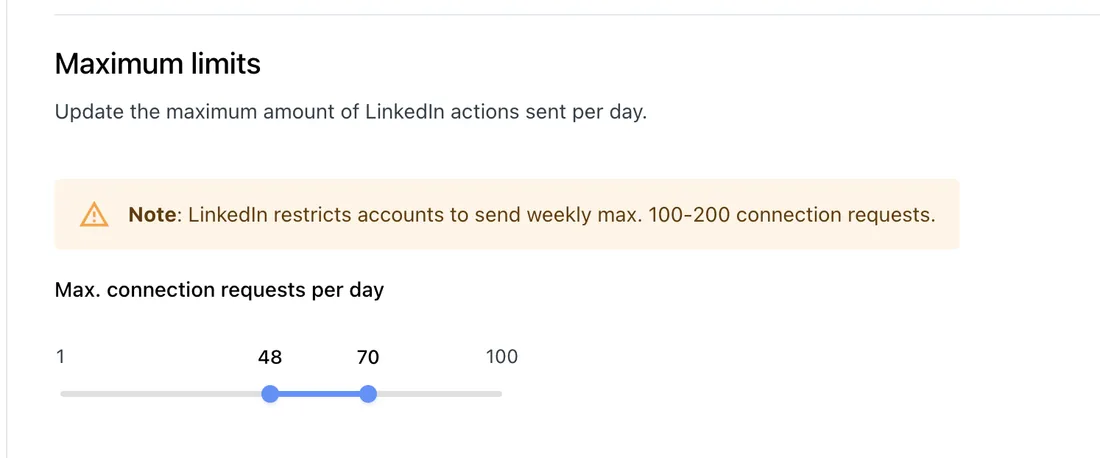
Replygrow sends up to 100 invitations a day. We recommend staying under 300 a week, because LinkedIn limits how many connection requests an account can send.
Schedule
Active hours
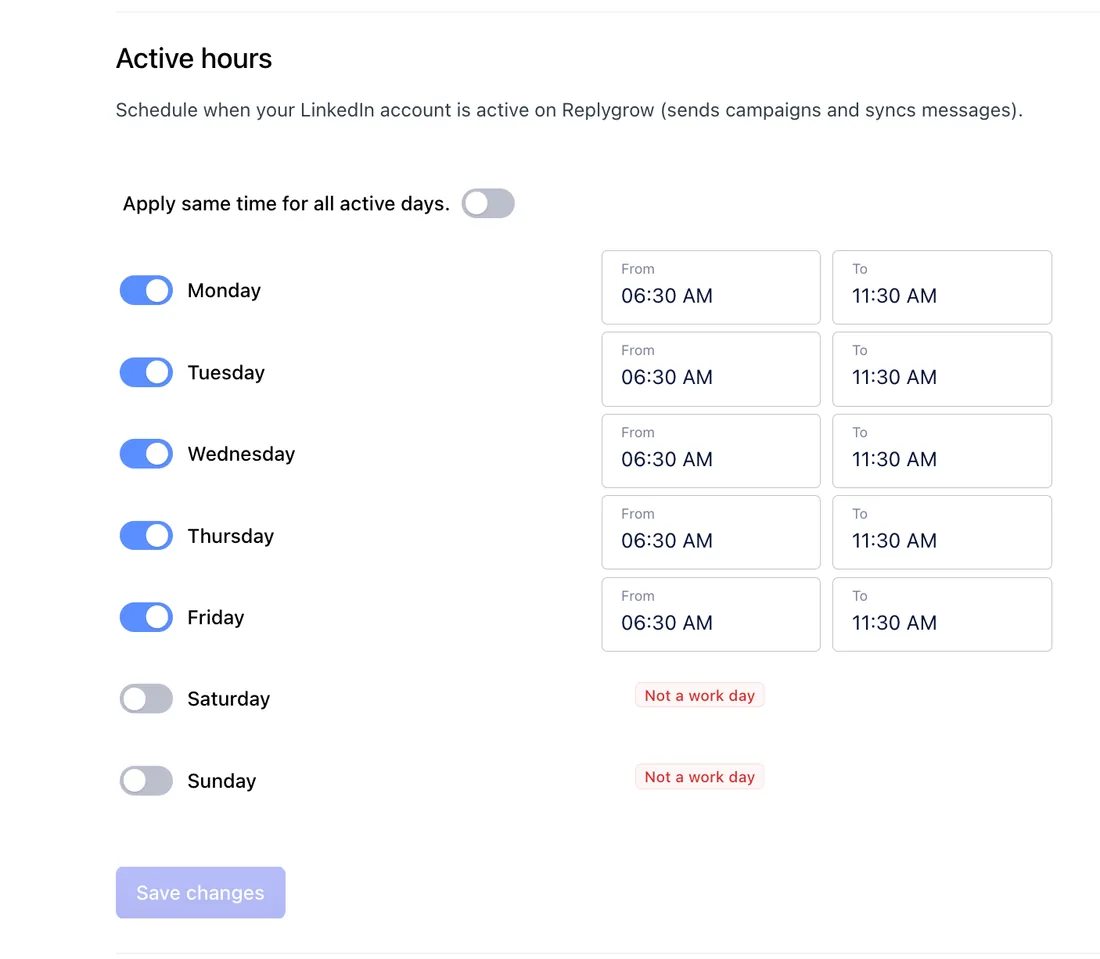
Active hours decide when the account is active on Replygrow: sending campaigns and syncing messages. They follow the time zone you select.
To set them:
- Turn days on or off.
- Set From and To times for each day, or use Apply same time for all active days.
- Click Save changes.
Inactive days
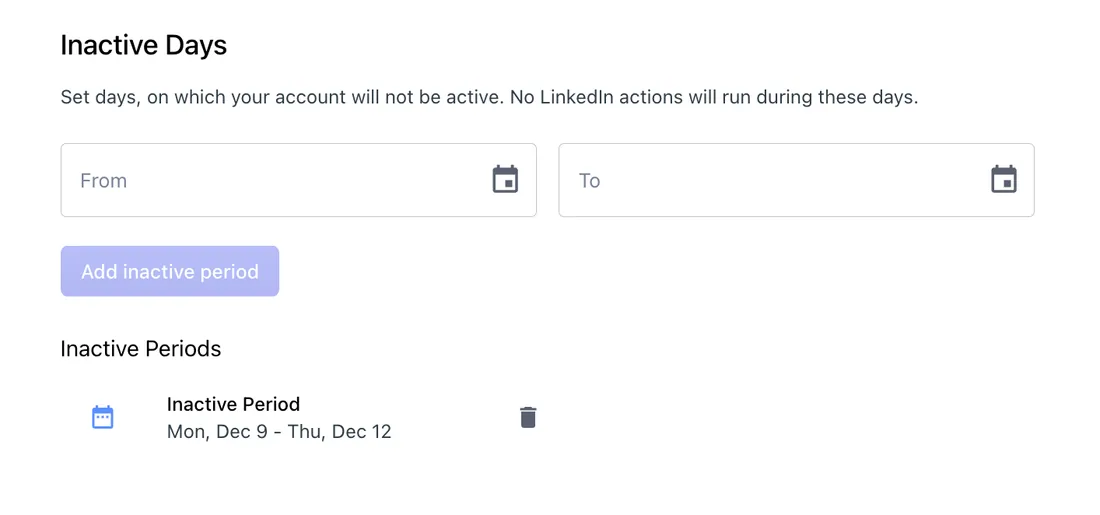
Add periods when the account does nothing, such as a holiday. Campaigns resume when the period ends.
- Choose From and To dates.
- Click Add inactive period.
Click the bin icon to remove a period.
Company
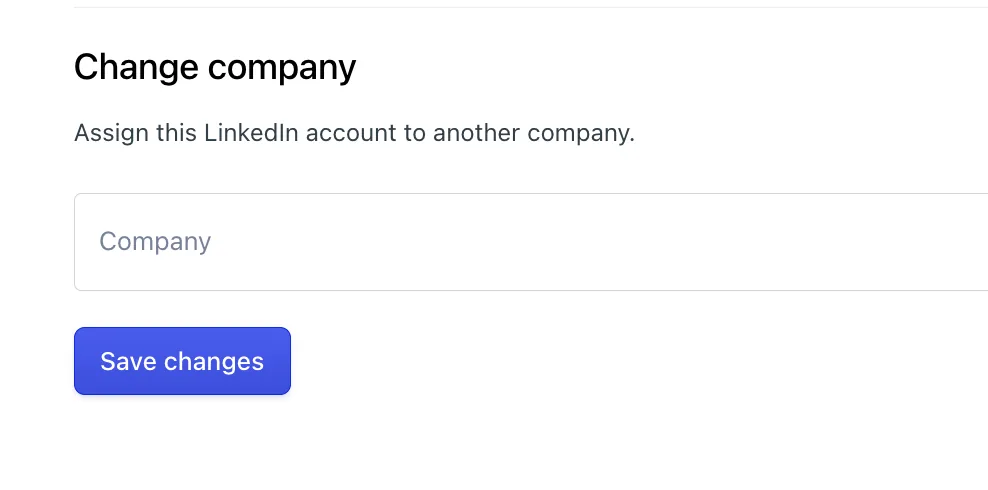
Assign the account to a company in Change company. Accounts in the same company share campaigns and searches.
By default, they also can't message the same prospect, which prevents duplicate outreach. You can turn that off.
Full guide: Team account
Account placeholders
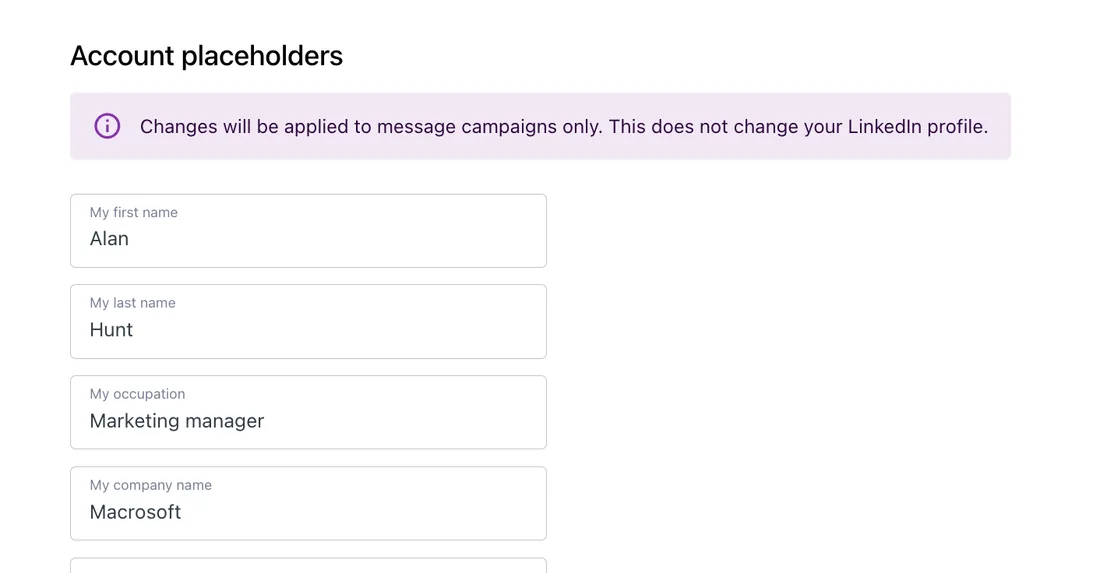
Fill in My first name, My last name, My occupation and more once, then reuse them in campaign steps. For example, "Best, my_first_name" becomes "Best, Alan".
Changes affect campaign messages only, not your LinkedIn profile.
Blacklist
To avoid contacting specific people, add them to the blacklist.
Related articles
- Create a campaign
- Placeholders
- Multiple accounts
- Team account
- Feature overview: LinkedIn account safety