

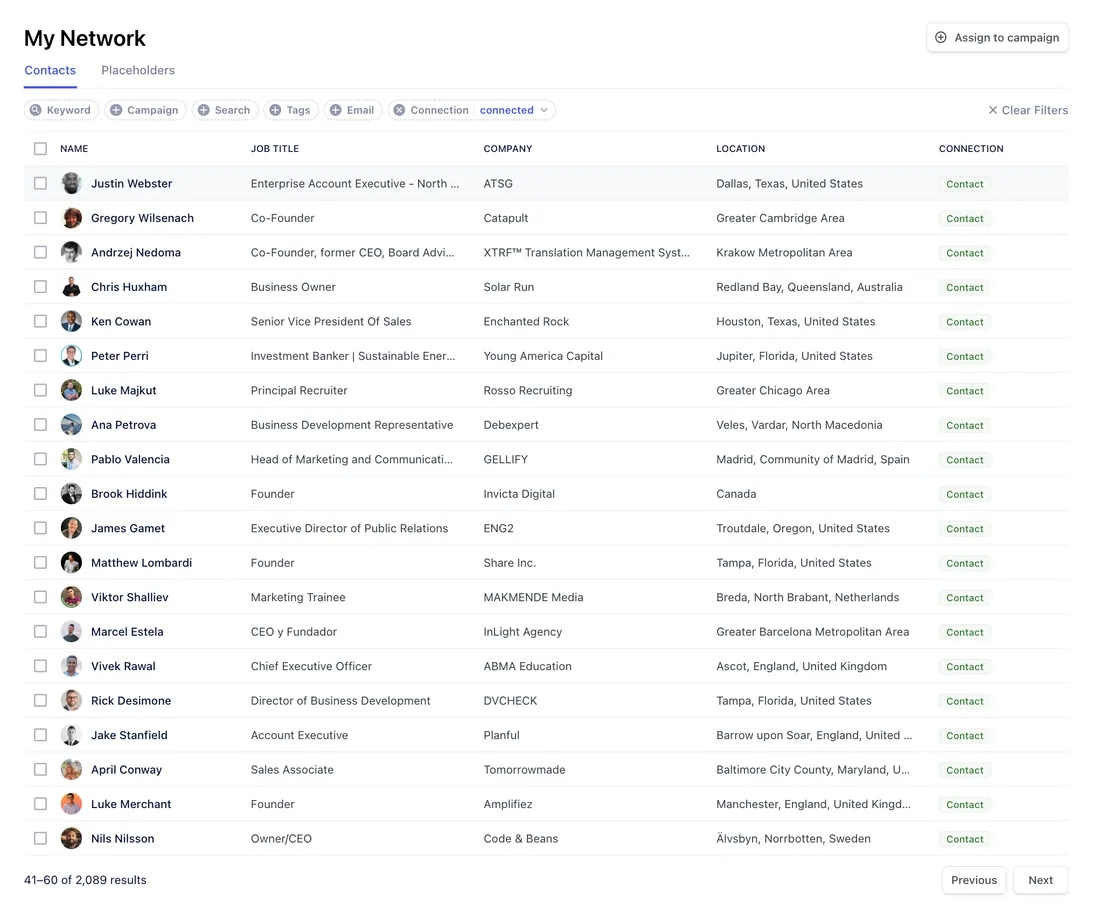
Contacts is the CRM inside Replygrow. It lists every lead you imported through a search or a Google Sheet for one LinkedIn account. Find it under My Network.
Find and filter your leads
Use the filters above the table to narrow the list: Keyword, Campaign, Search, Tags, Email and Connection.
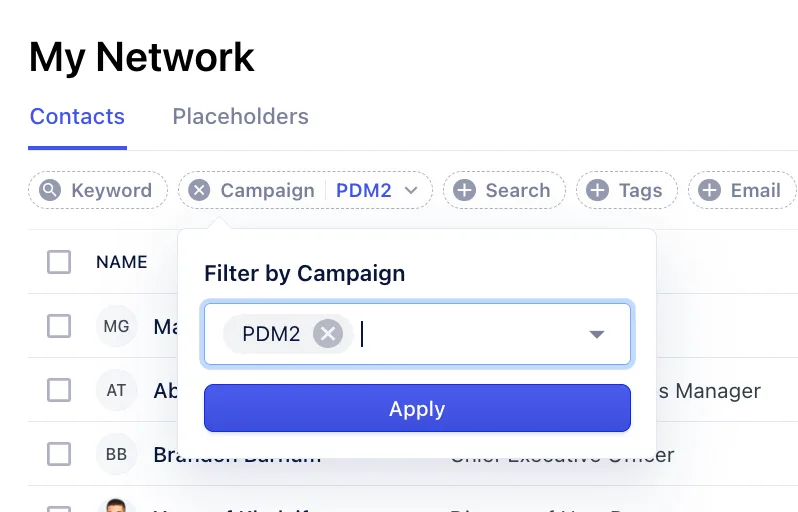
Check who is in which campaign
Filter by Campaign to see which people are in a campaign, so you don't have to check each campaign by hand.
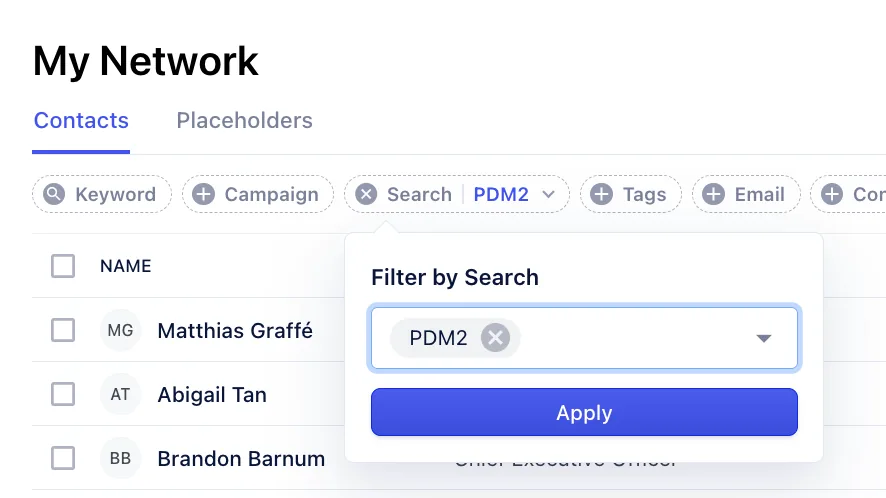
Filter by the search a contact came from
Filter by Search to see only the contacts you imported with a specific search.
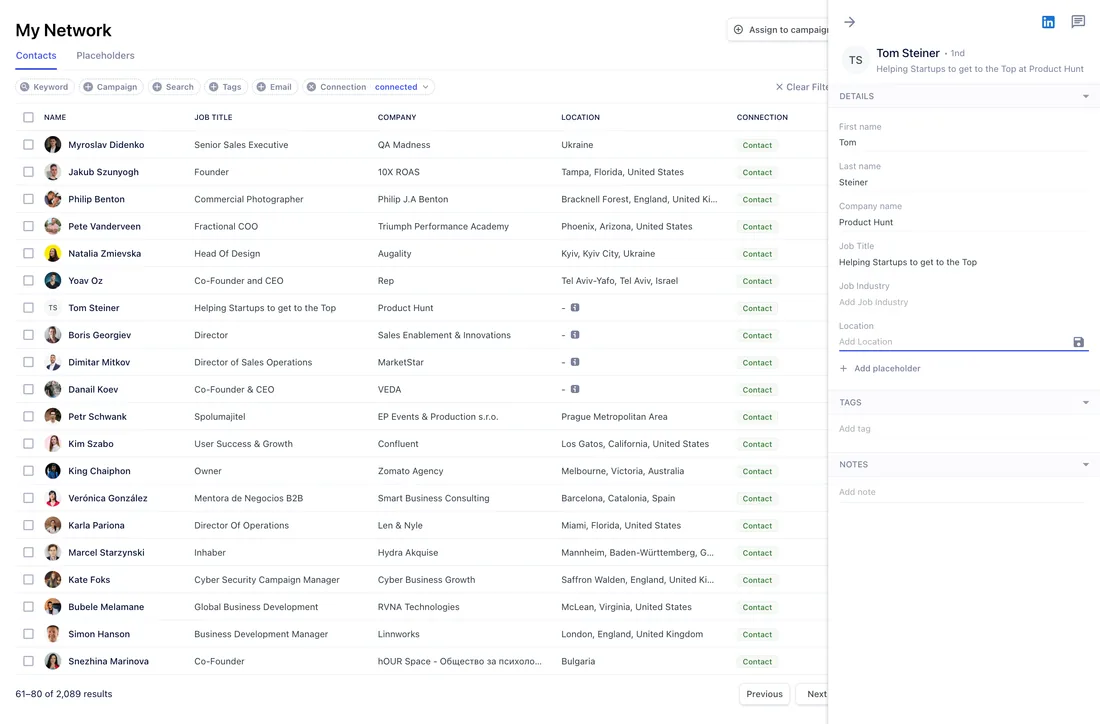
Edit details, add tags and notes
Click a contact to open the side panel. It shows the details collected from LinkedIn, Tags and Notes. Tags and notes live here in Contacts. The inbox doesn't have them.
To edit placeholder values:
- Click a field and type the new value.
- Click Add placeholder to add your own field.
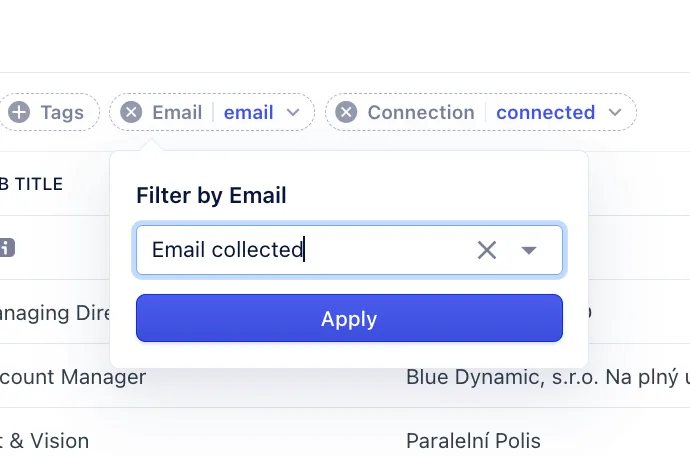
Find contacts with an email address
Use the Email filter and select Email collected to list contacts whose email address was found.
Assign contacts to a campaign
Select contacts with the checkboxes and click Assign to campaign. You can assign up to 20 contacts at a time to the campaign you choose.