
Audience
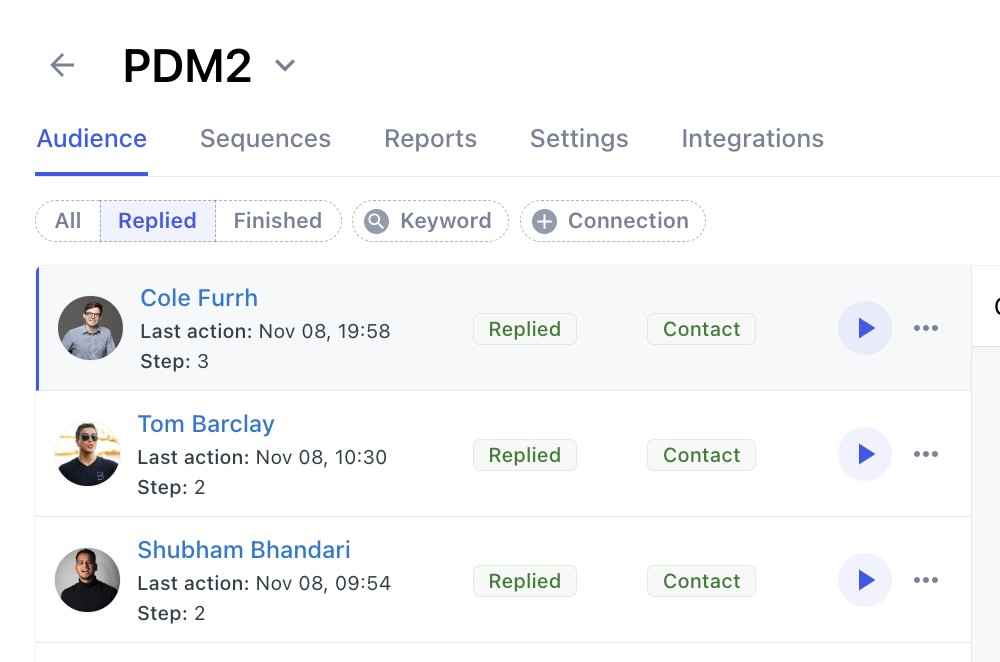
Once prospects are successfully added to the campaign, you can see them in the Audience tab.
In this overview, you can see which step of the campaign they are at, whether the campaign has finished for them, and their degree status (connected or not).
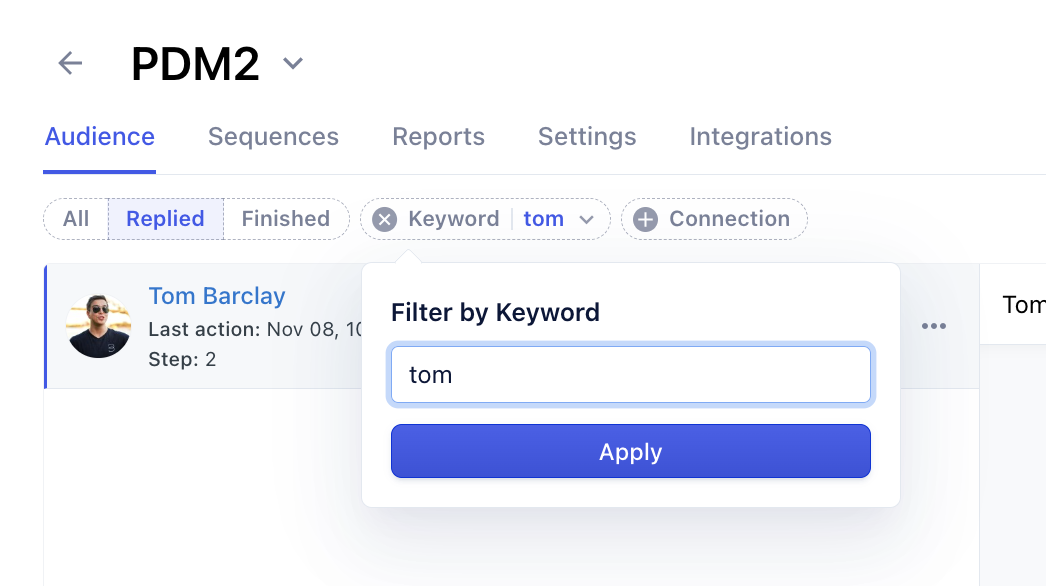
Inside the campaign, you can filter their names, conversation status, or connection.
Steps
Once you add your automated steps, you can preview what the message will look like before it has been sent.
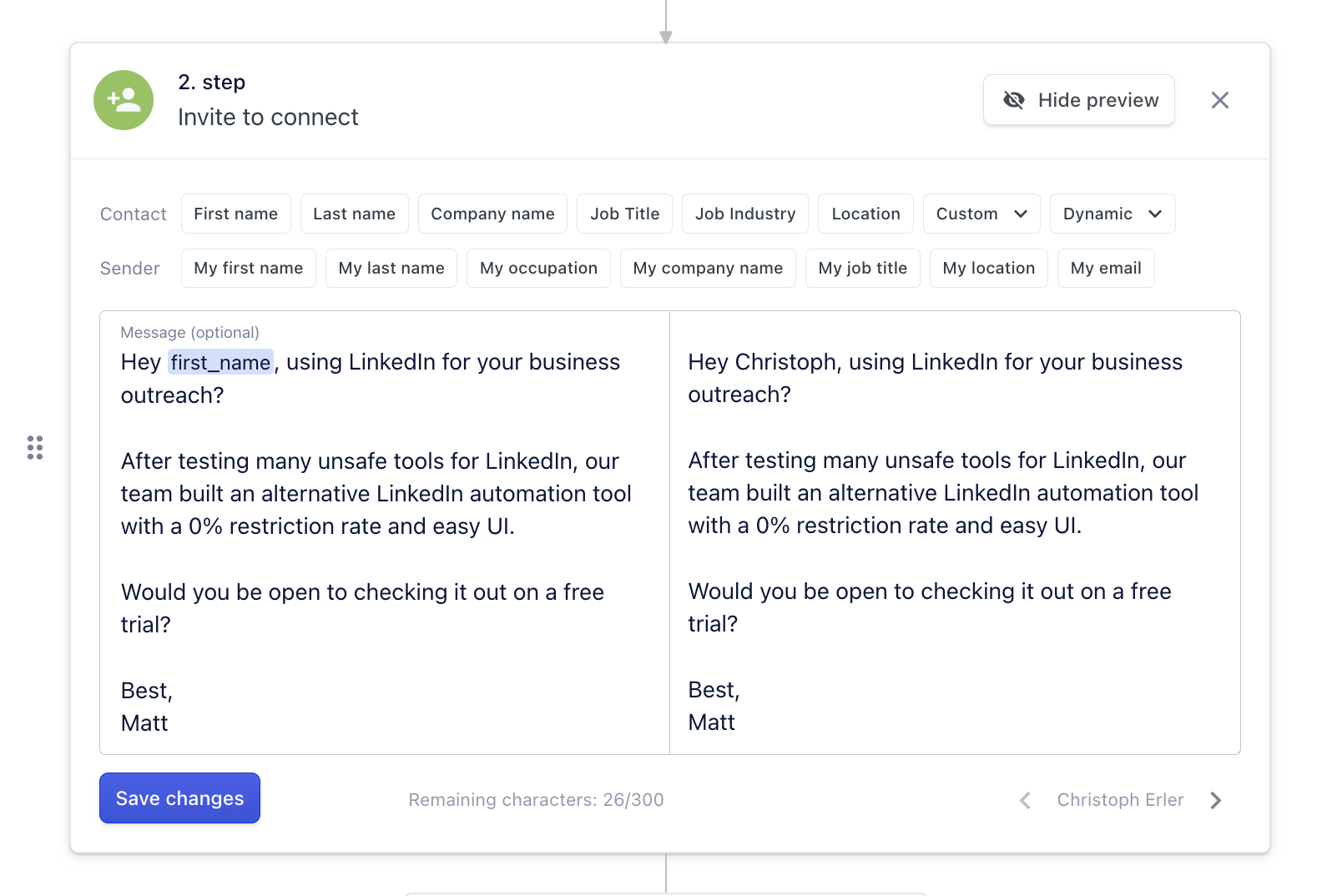
You can go to campaign flow, select a specific action step and click on a preview button. You'll be able to see your message on the left side and on the right side the generated message with placeholders replaced for the actual values, which will be sent to the prospect.
Reports
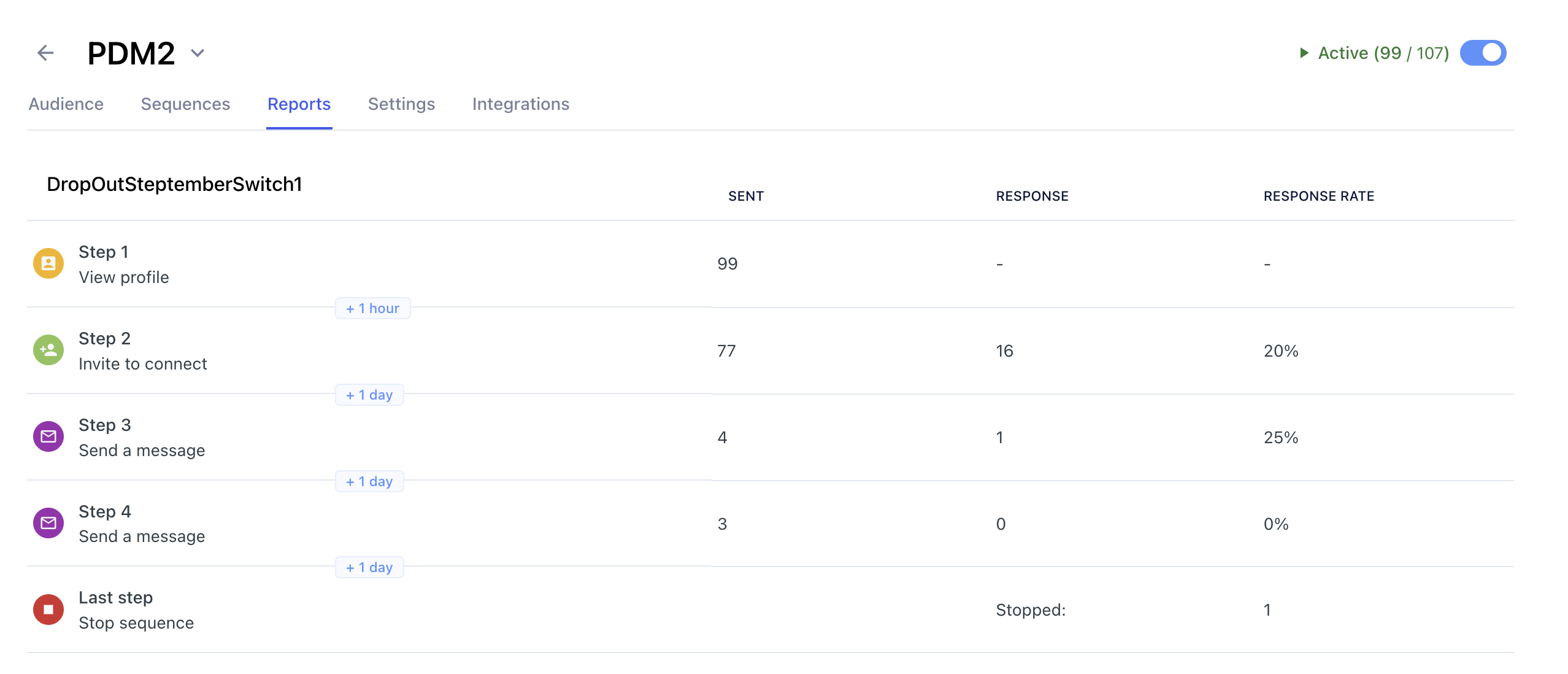
On the campaign report page, you can see a specific overview with the total number of sent and replies for each action.
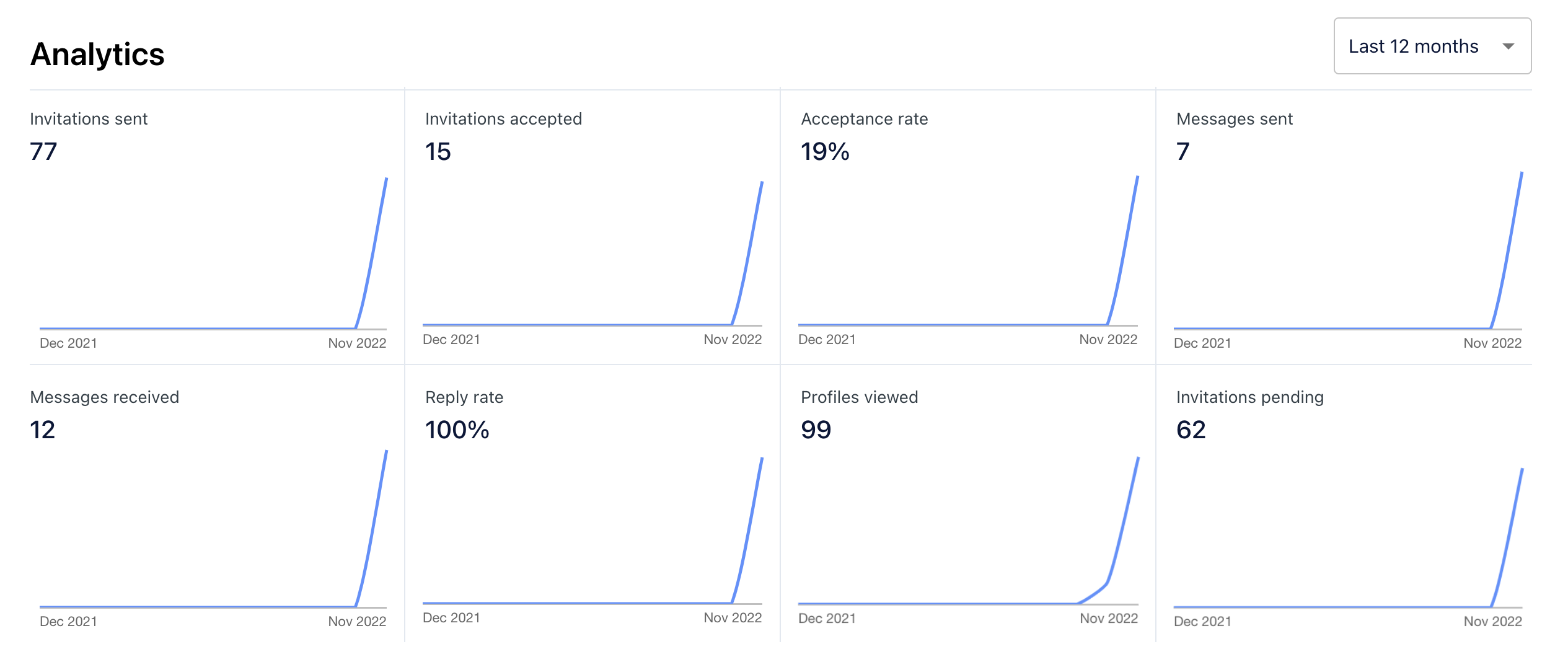
Additionally, graphical visualization for each action within a specific period is displayed, making it even more accessible and transparent.
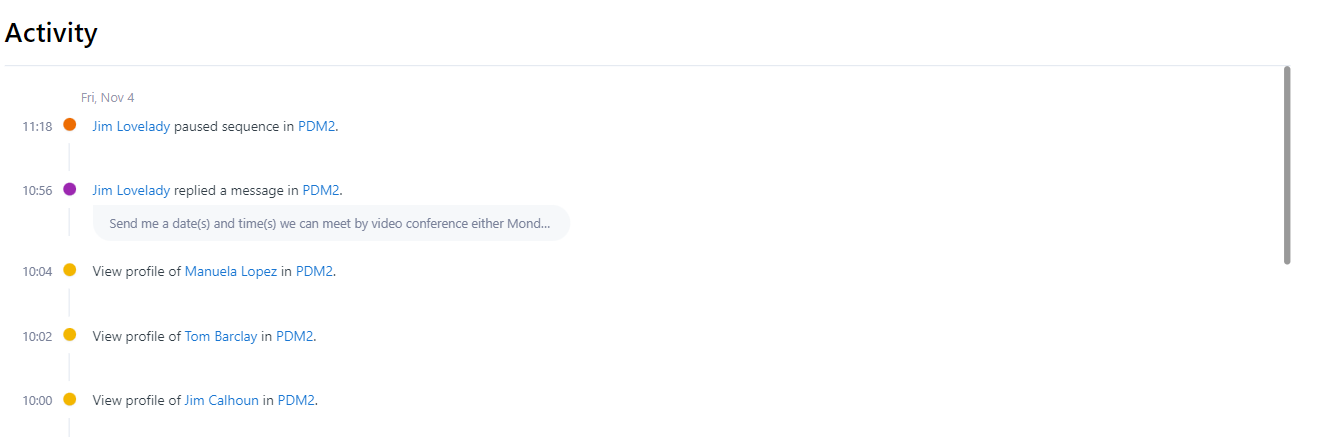
At the bottom of the report page is an activity overview. There you can see each interaction with prospects through this campaign. For instance, if the connection request was accepted, they replied to your message, or sequences just ended.
Settings
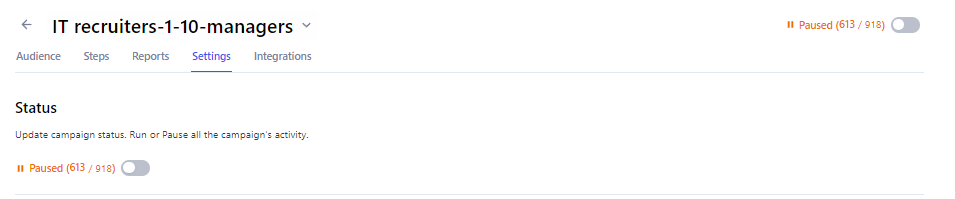
You Pause and Continue the campaign by clicking the status toggle.
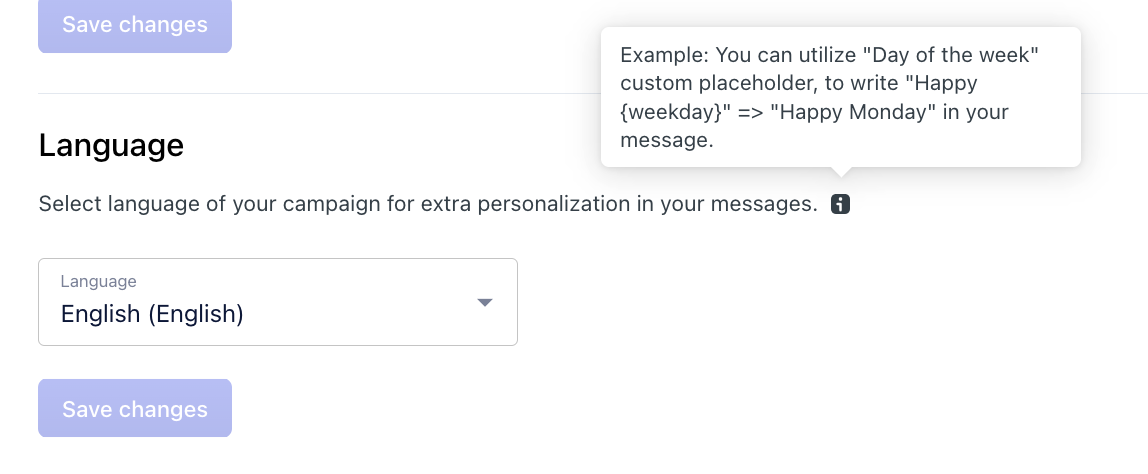
Pick a language for extra personalization. For instance, when using the Today's weekday placeholder.
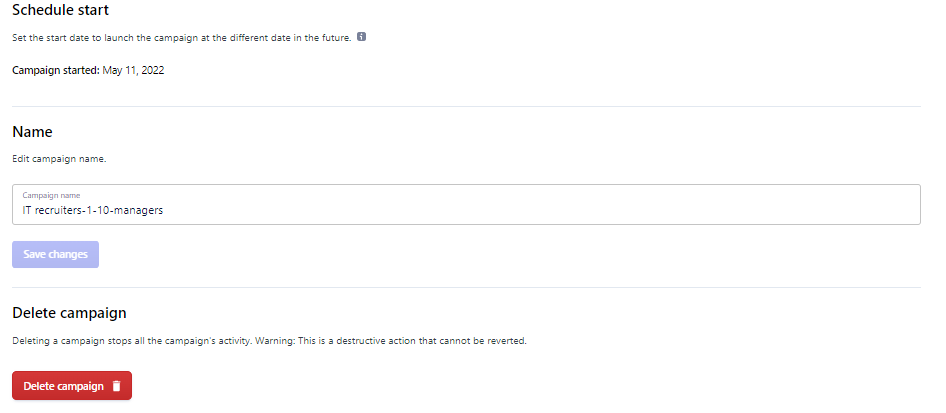
Check the start date, Rename or delete the campaign
Integrations
Reverse webhooks
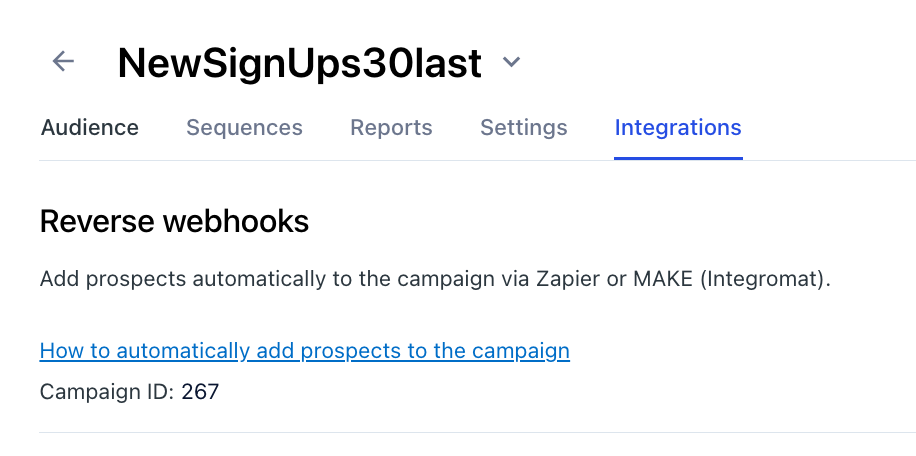
You can add a prospect to the specific campaign by using reversed webhooks.
Webhooks
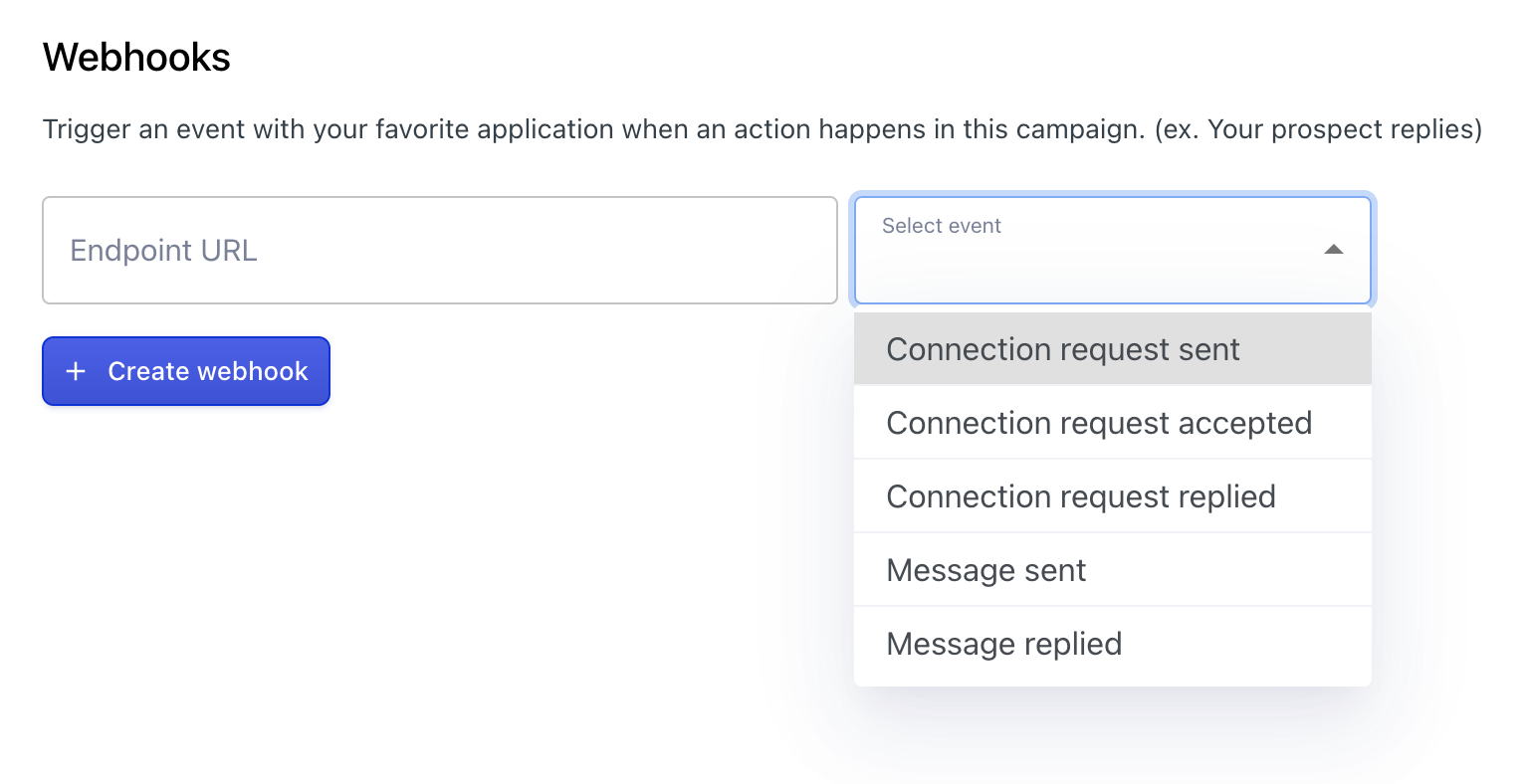
You can export prospects from the campaign by triggering a webhook. For instance, when a connection request is accepted or a message is replied.