

Let's create a new webhook. For this purpose, we are going to use Zapier, you can also use other tools, such as Make.
Webhook with Zapier
Go to Zapier and log into your account
Click on Create zap
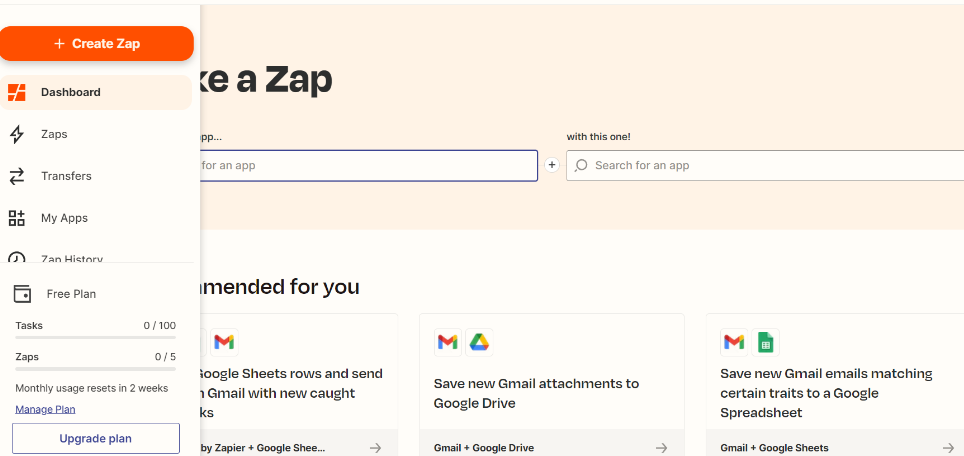
3. Name your Zap.
4. Type Webhooks with Zapier in the Choose app & event section and choose an app.
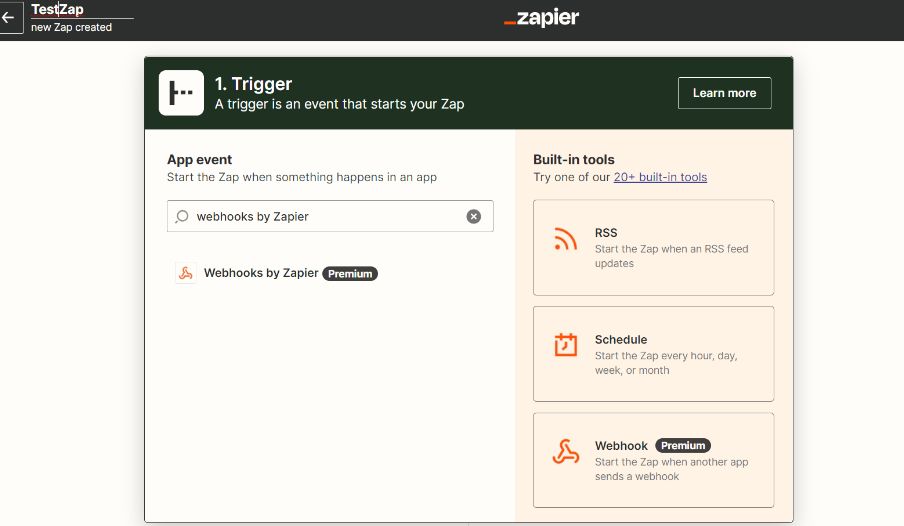
5. Choose a trigger event called Catch Hook. You will be given three choices, but you should choose Catch Hook from the list.
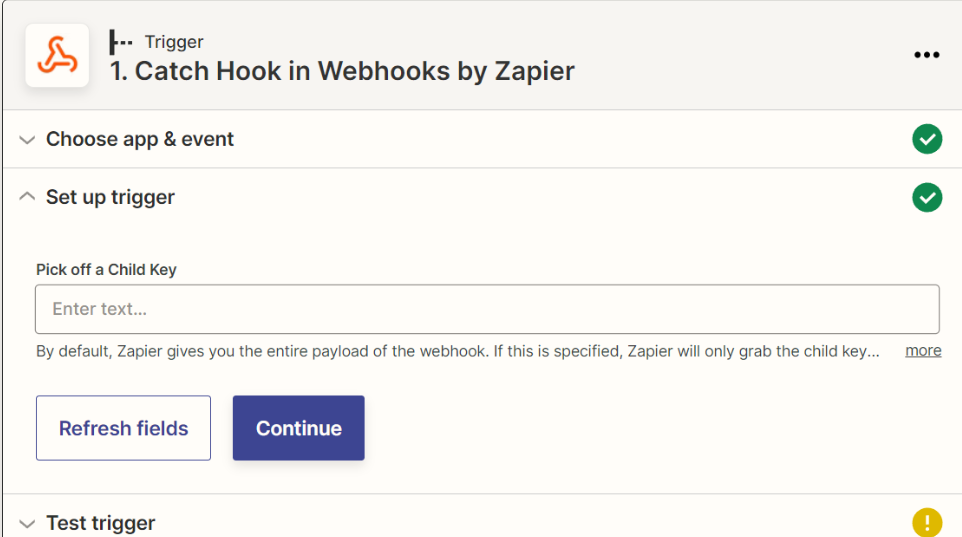
6. Press Continue on the step Set up a trigger.
7. In the test trigger, there will be a link – click on Copy (it will turn into Copied when done).
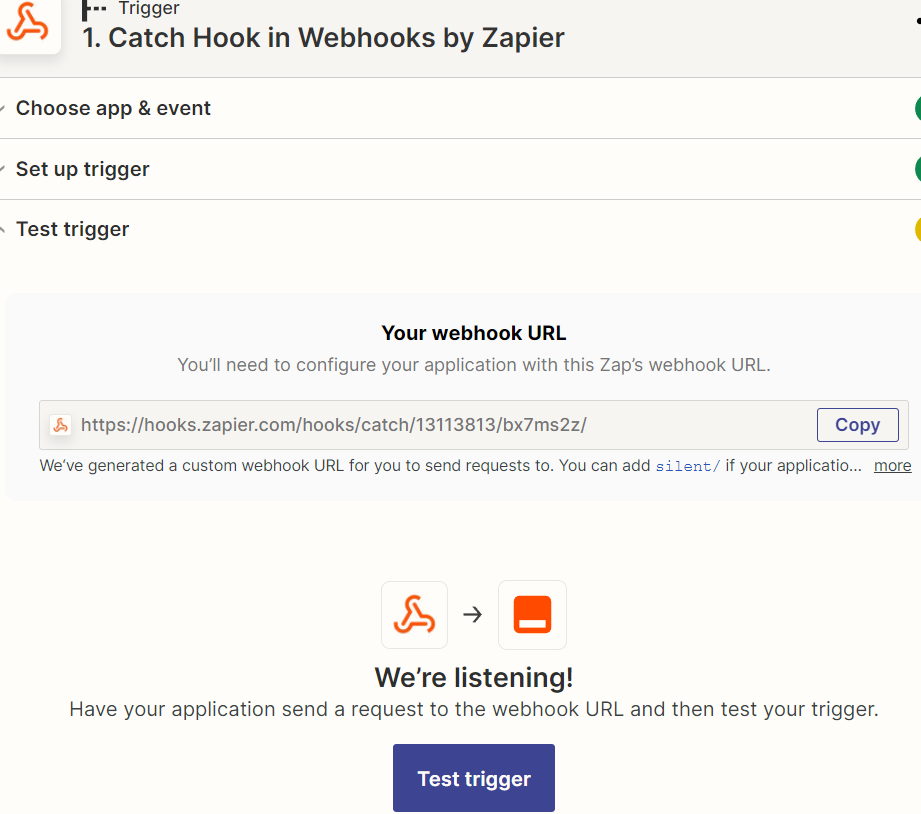
8. Click on the Continue
Setup webhook trigger on Replygrow
Go to Replygrow and Login
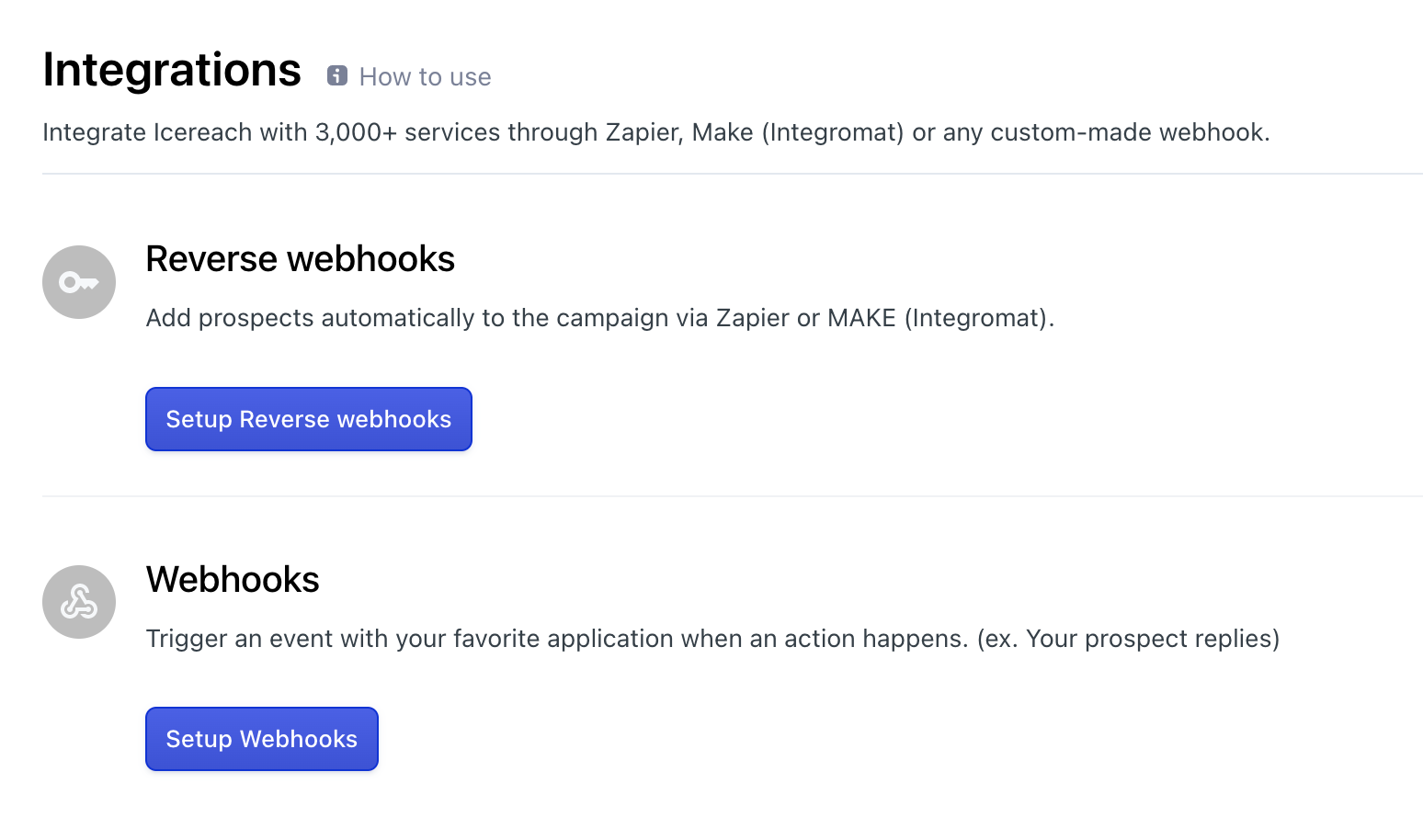
2. Click on Integrations and select Setup Webhooks.
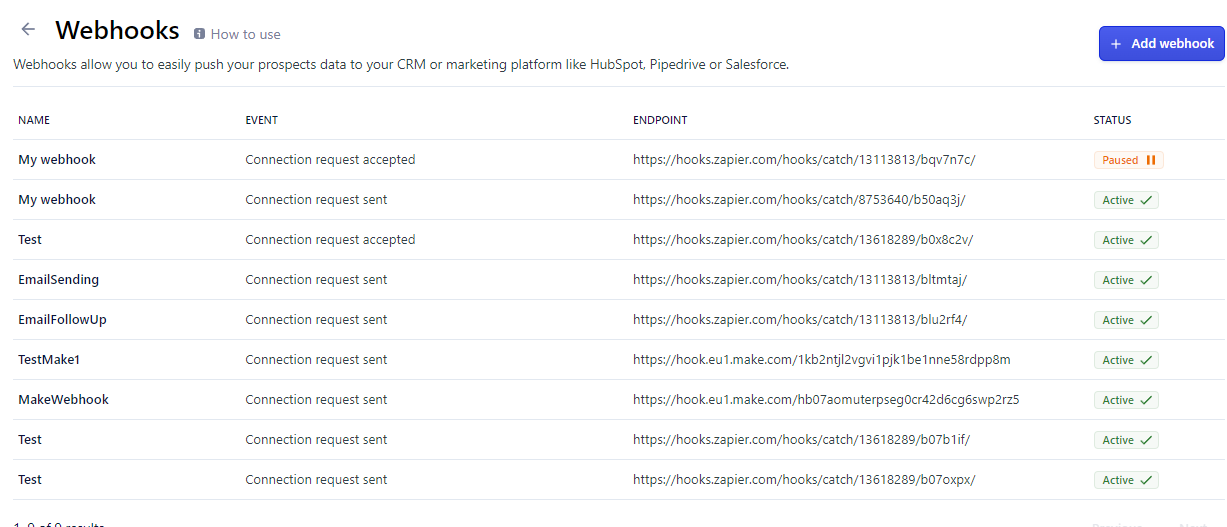
3. Click on Add webhook.
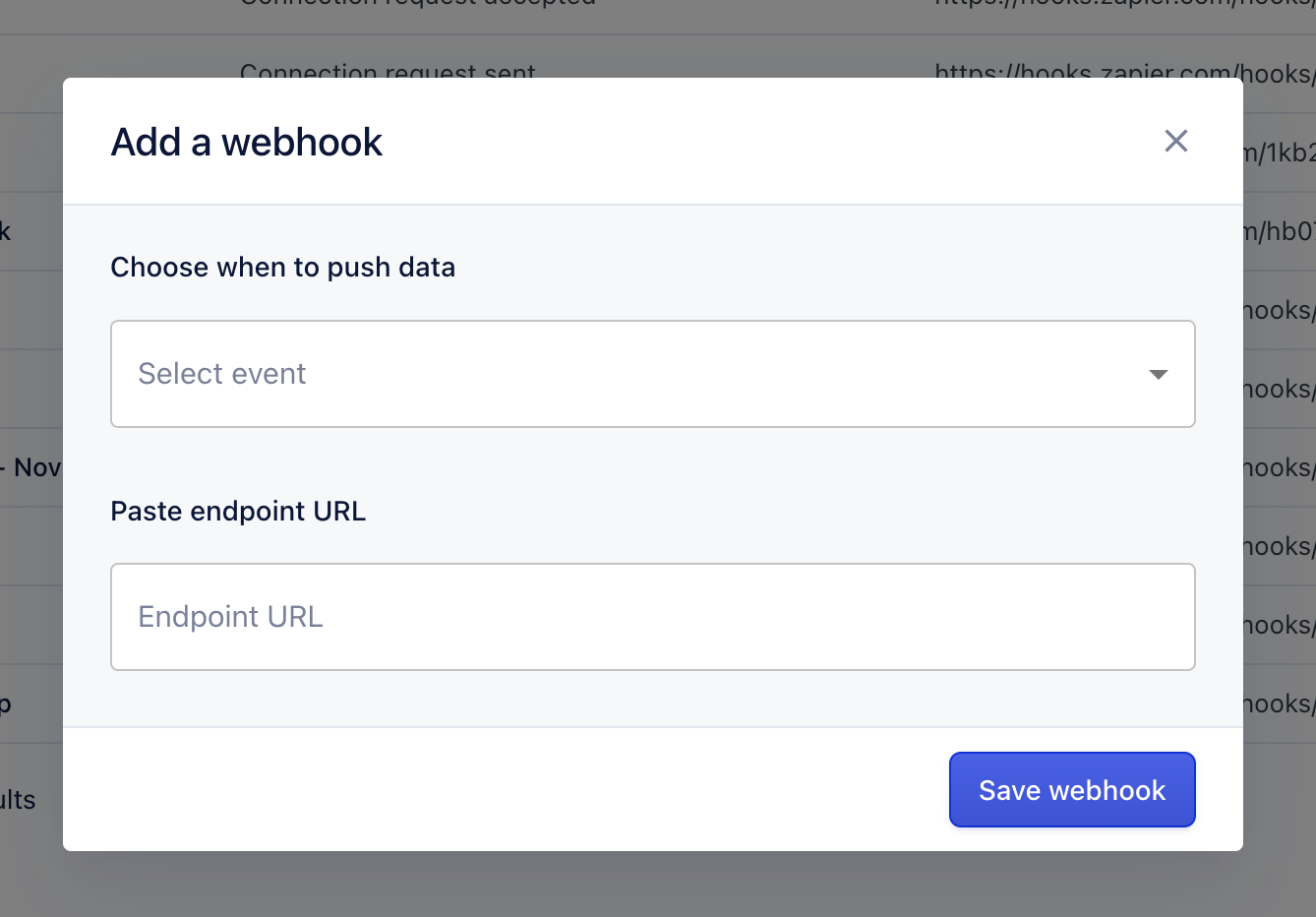
4. When you click on Add webhook, a pop-up screen will appear.
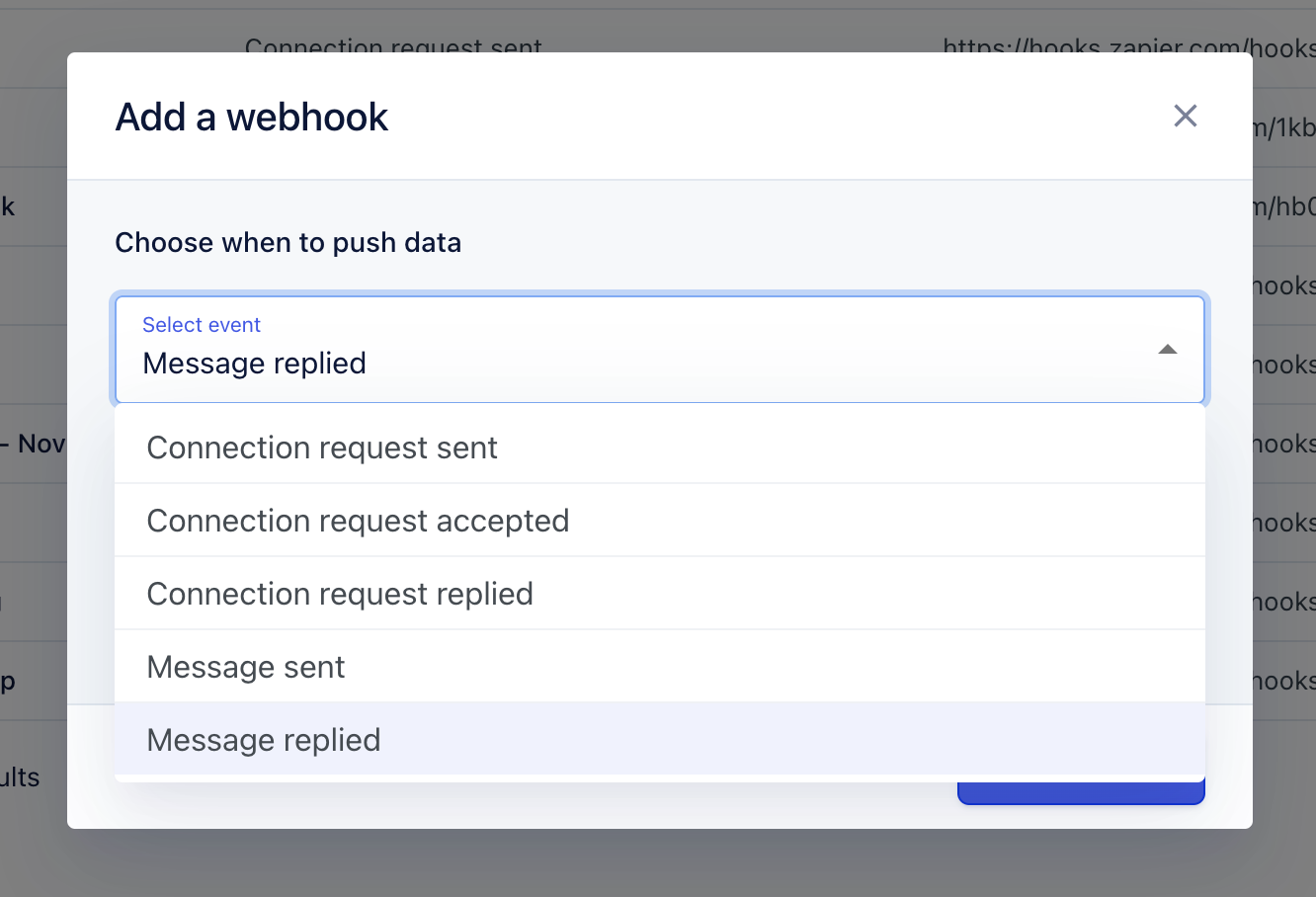
5. Choose the trigger action you want. You should choose the event when you want your hook to be triggered (connection request sent, connection request accepted...).
6. Paste the URL you copied earlier from Zapier.
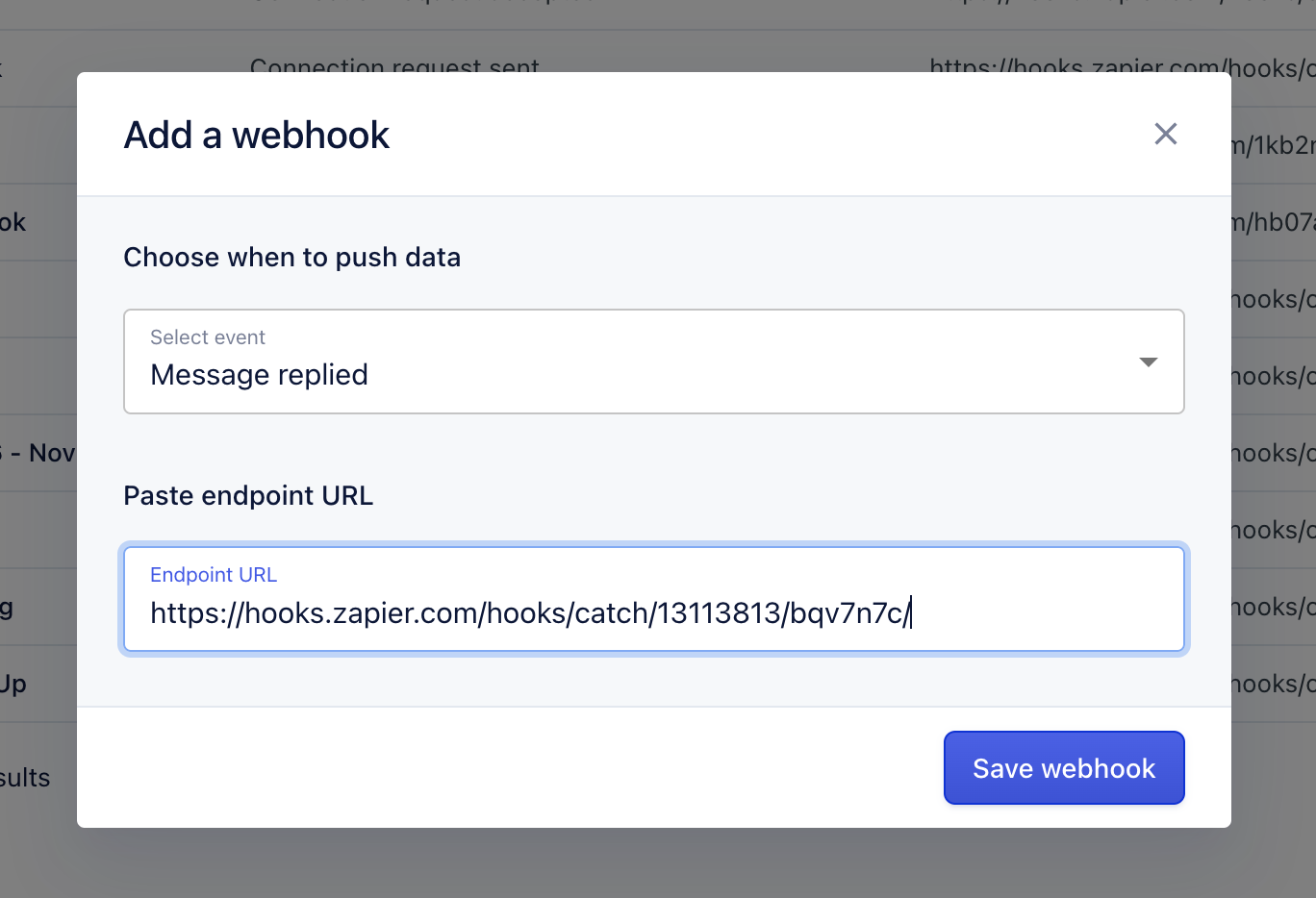
7. Click on Save webhook.
Next you can find out how to Integrate Replygrow with CRM.