

After you sign in on Replygrow for the first time, you are asked to add your LinkedIn account.
Here you can learn how to add a new account to Replygrow in a few simple steps.
Adding a first LinkedIn account
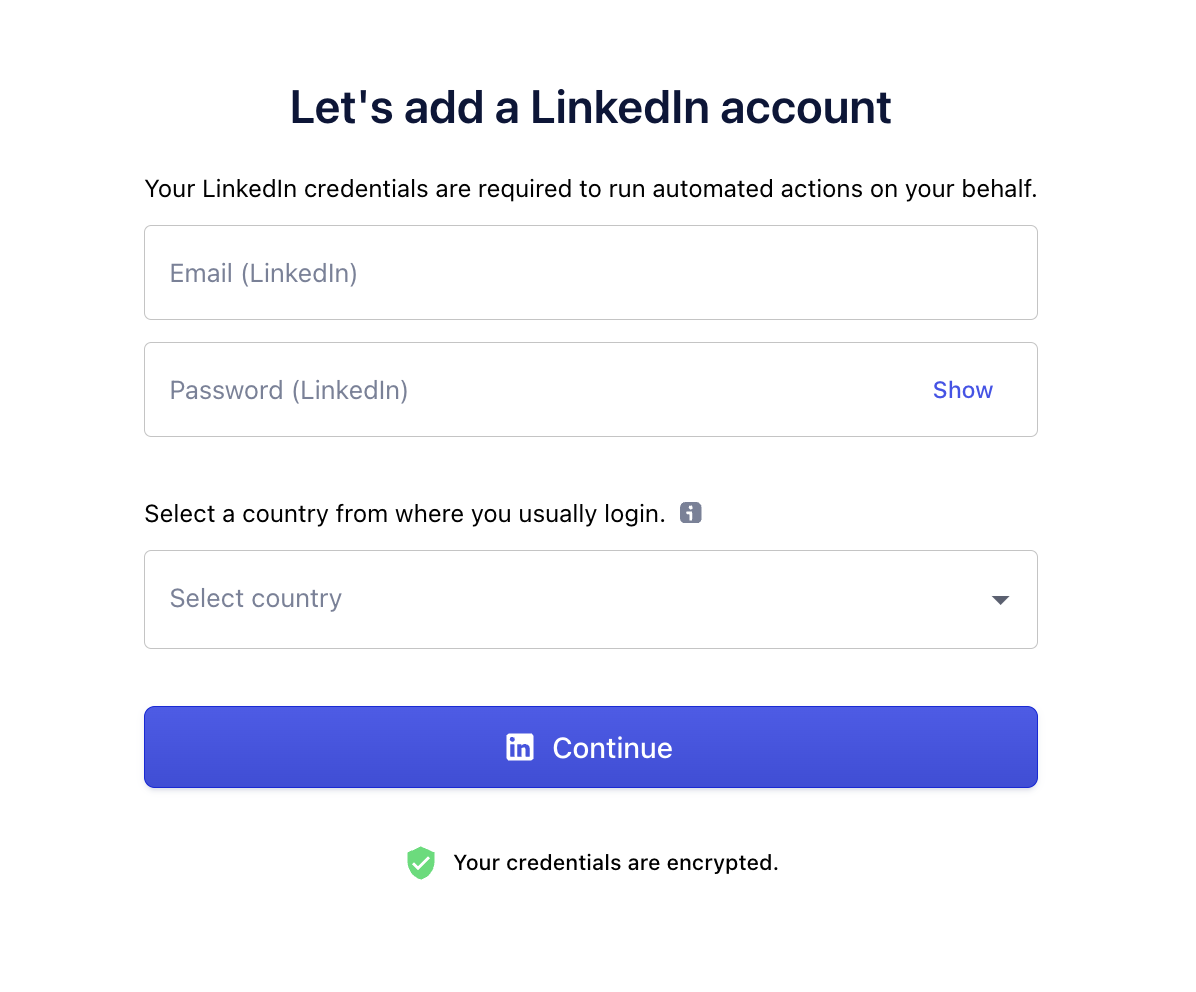
Insert your LinkedIn login and password. It's important your credentials are correct, to be able to connect your LinkedIn account.
If you're unsure about your LinkedIn credentials, we recommend to open a incognito browser window and try to sign in to your account on LinkedIn.
Next, select a country from where you usually connect to your LinkedIn account. Replygrow will connect to the account strictly from the selected location.
Replygrow automatically pre-selects the country based on your browser settings. You can change the country by clicking on the input field and selecting a different country from the list.
Once finished, click on Continue. You'll be automatically redirected to your dashboard.
Verify your LinkedIn account
Once you added your account, Replygrow will try to connect to it.
LinkedIn usually requires a verification to approve a new connection to your LinkedIn account.
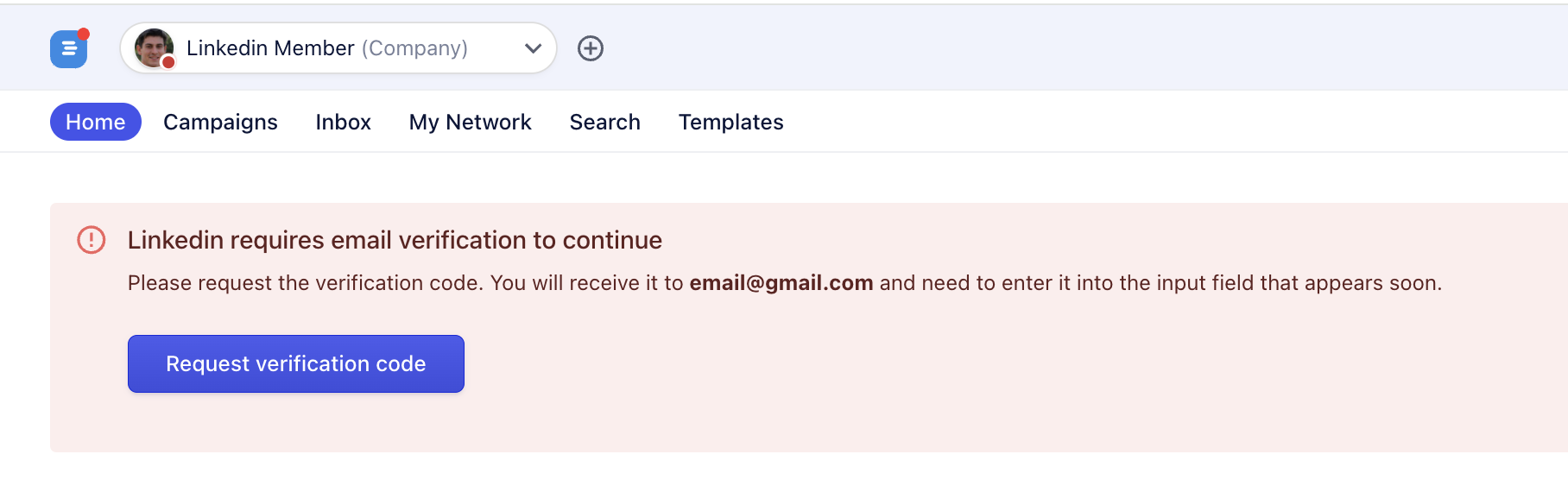
The most common method of verification is LinkedIn Email PIN verification. You will receive an email with Email PIN number which you need to insert in the Replygrow's dashboard to verify the connection.
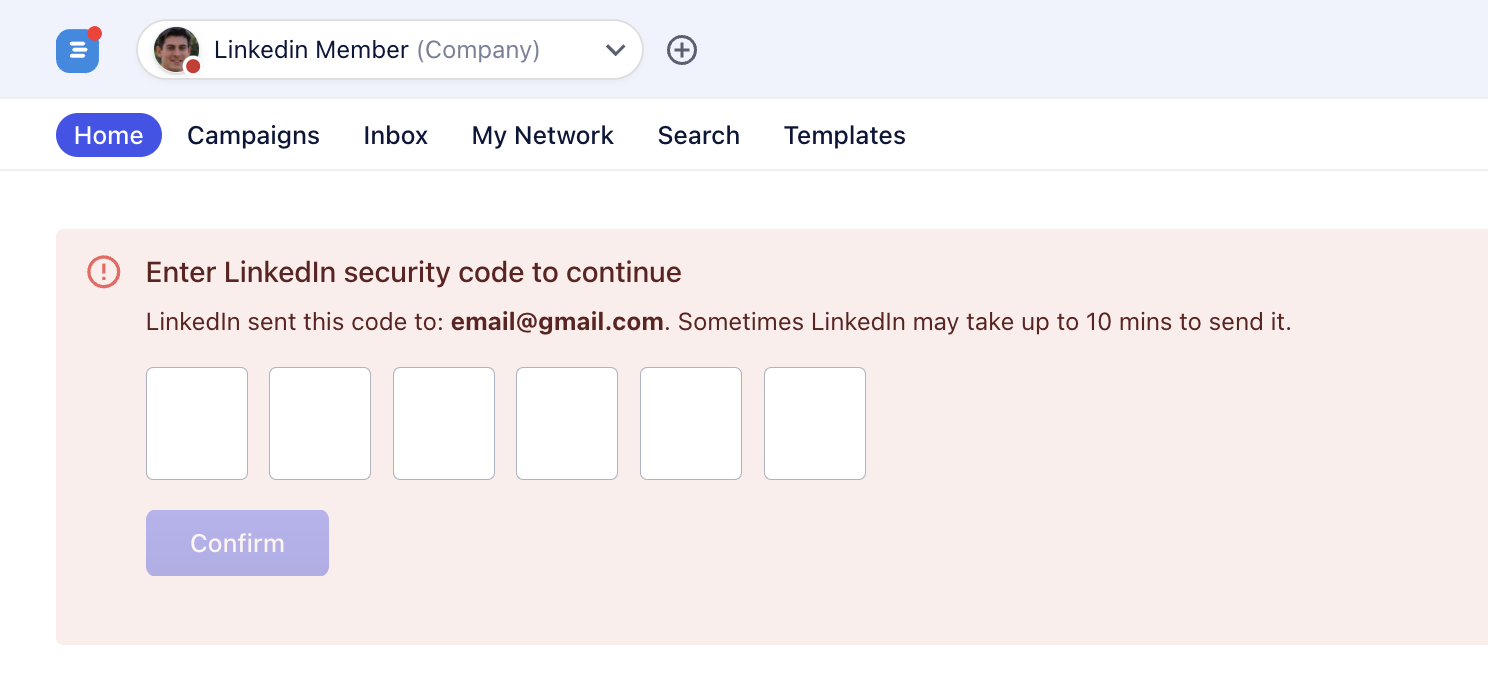
The are also other types of verification eg. SMS PIN, 2-FA authorization or in-app verification.
Once verified, it'll be possible to start automated actions on your account.
Incorrect credentials
If you made a mistake with your login or password, the system automatically notifies you of incorrect credentials.
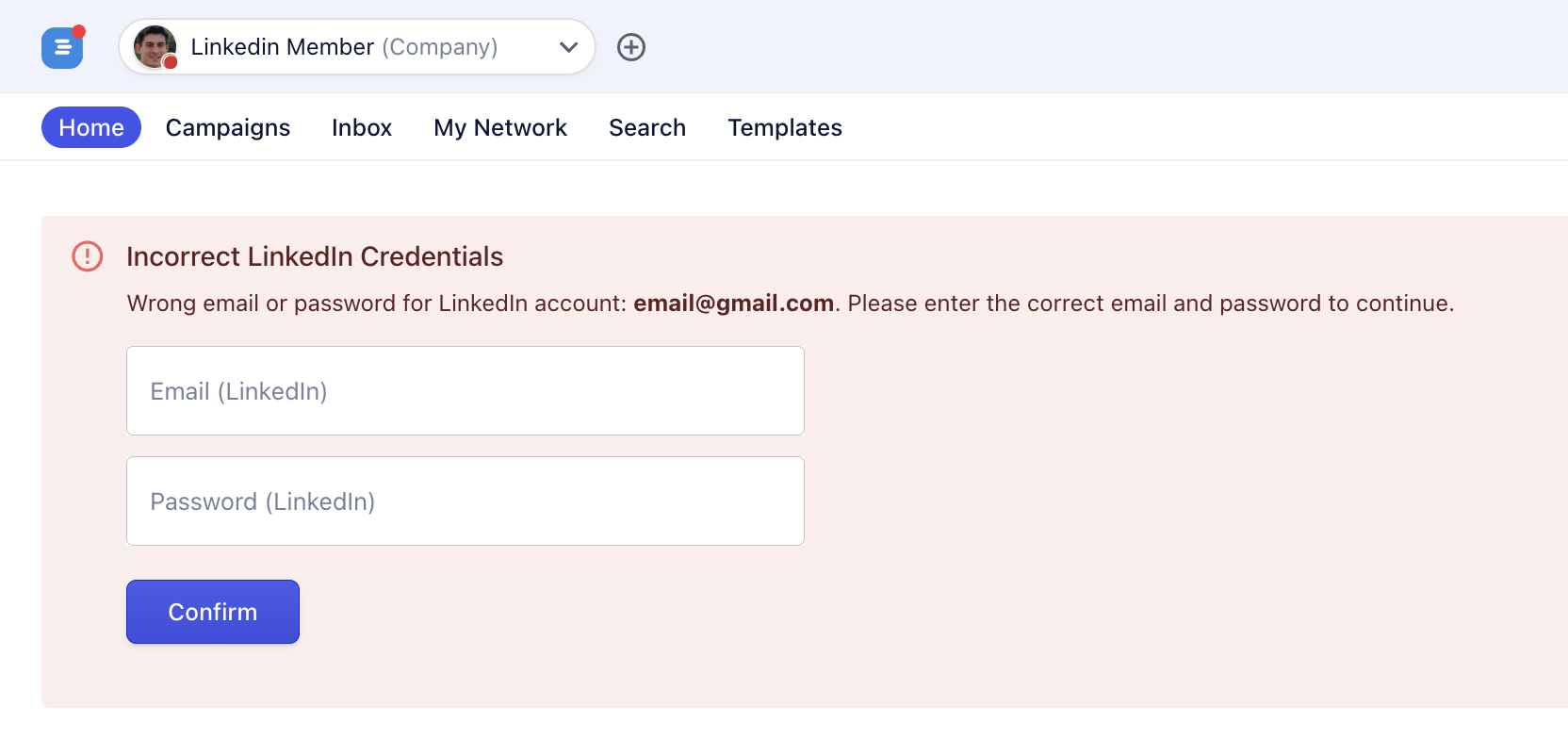
LinkedIn only informs our system that credentials are incorrect, so we ask you to again input both the correct login and password to make sure the mistake is corrected.
If you're unsure about your LinkedIn credentials, we recommend to open a incognito browser window and try to sign in to your account on LinkedIn, as it's faster.