

Sales Navigator gives you far more precise filters than a basic LinkedIn search, and more results per search. Replygrow imports two kinds of Sales Navigator source:
- Lead searches: any people search you build in Sales Navigator.
- Saved lead lists: a list you have already built in Sales Navigator.
The LinkedIn account you connect in Replygrow needs an active Sales Navigator license.
Import a lead search
In Sales Navigator, open Lead filters and build your search. Useful filters include:
- Geography, Industry and Company headcount to define the market.
- Seniority level, Function and Current job title to reach the right people.
- Posted on LinkedIn in past 30 days to focus on people who are active and more likely to reply.
Copy the URL from your browser's address bar.
In Replygrow, go to Search and click Create search.
Choose Sales Navigator search, paste the URL into Sales Navigator URL and click Save Search.
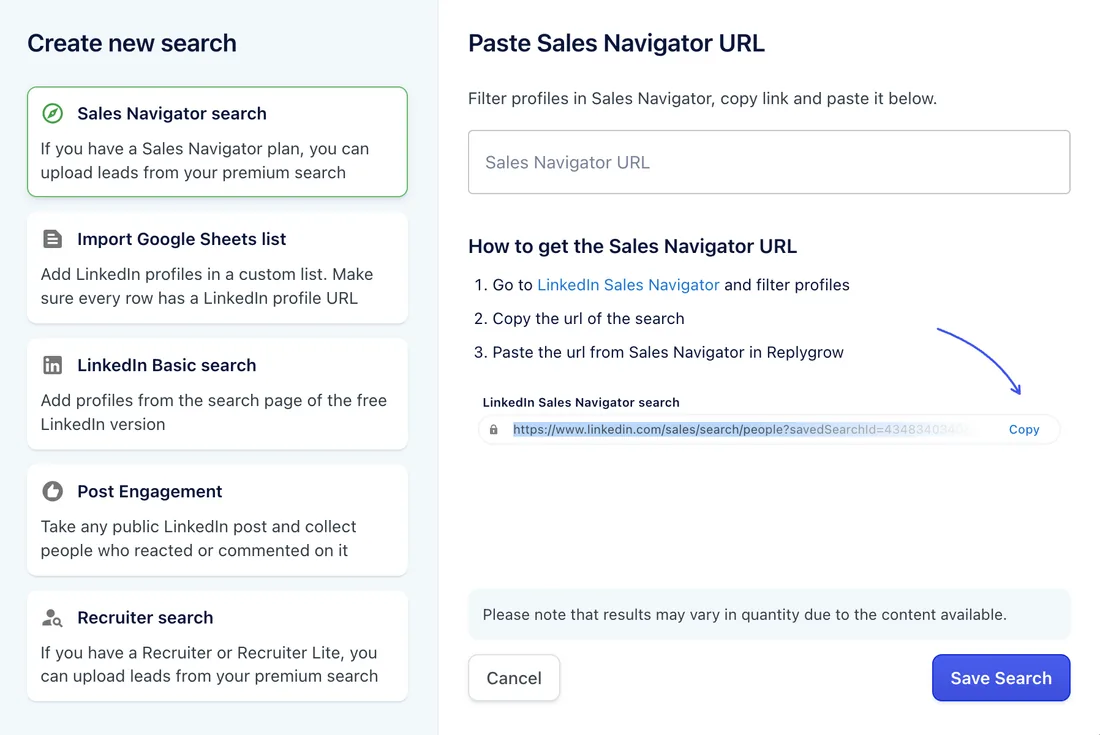
Import a saved lead list
- In Sales Navigator, open Lists, then Lead lists, and click the list you want.
- Copy the URL from your browser's address bar.
- Paste it into Sales Navigator URL in Replygrow as above and click Save Search.
Limits and tips
- Up to 2,500 leads per search or list. Sales Navigator shows at most 2,500 results for a search. For a bigger market, split it into several searches, for example by geography or company size.
- Use a lead search, not an account search. Replygrow imports people, so start from Lead filters.
- One license is enough for a team. You can import with the account that has Sales Navigator, then use the same search on other LinkedIn accounts.
- Sales Navigator import is included on every Replygrow plan. See pricing.
Next step
Add the search to a campaign: on the Leads step, choose Existing Search list. See Create a campaign.