

A basic LinkedIn search is the quickest lead source in Replygrow. It works with any LinkedIn account, so you don't need a premium subscription. You build the search on LinkedIn, copy its URL, and Replygrow imports the people it finds.
Build the search on LinkedIn
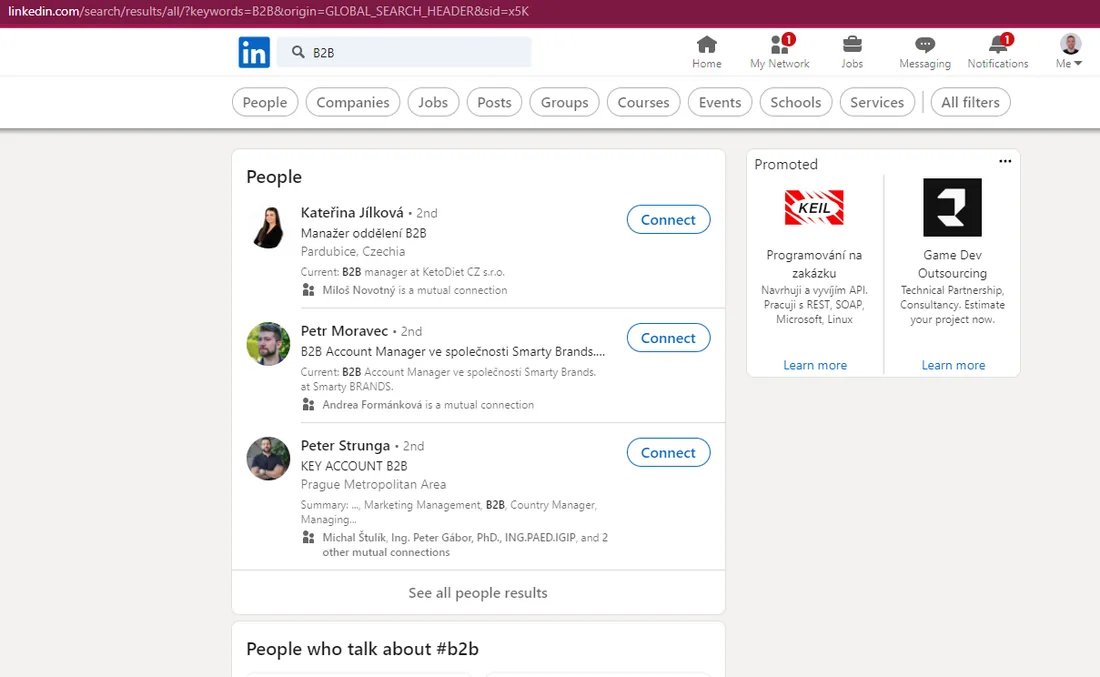
Go to linkedin.com and type a keyword in the search bar, such as a job title or industry.
Click People, so the results show people rather than posts or companies.
Narrow the results with LinkedIn's filters:
- Connections: choose 2nd and 3rd to reach people you aren't connected to yet. Choose 1st for a message-only campaign to your existing network.
- Locations, Current company, Industry and the other filters under All filters.
Copy the URL from your browser's address bar.
Import it into Replygrow
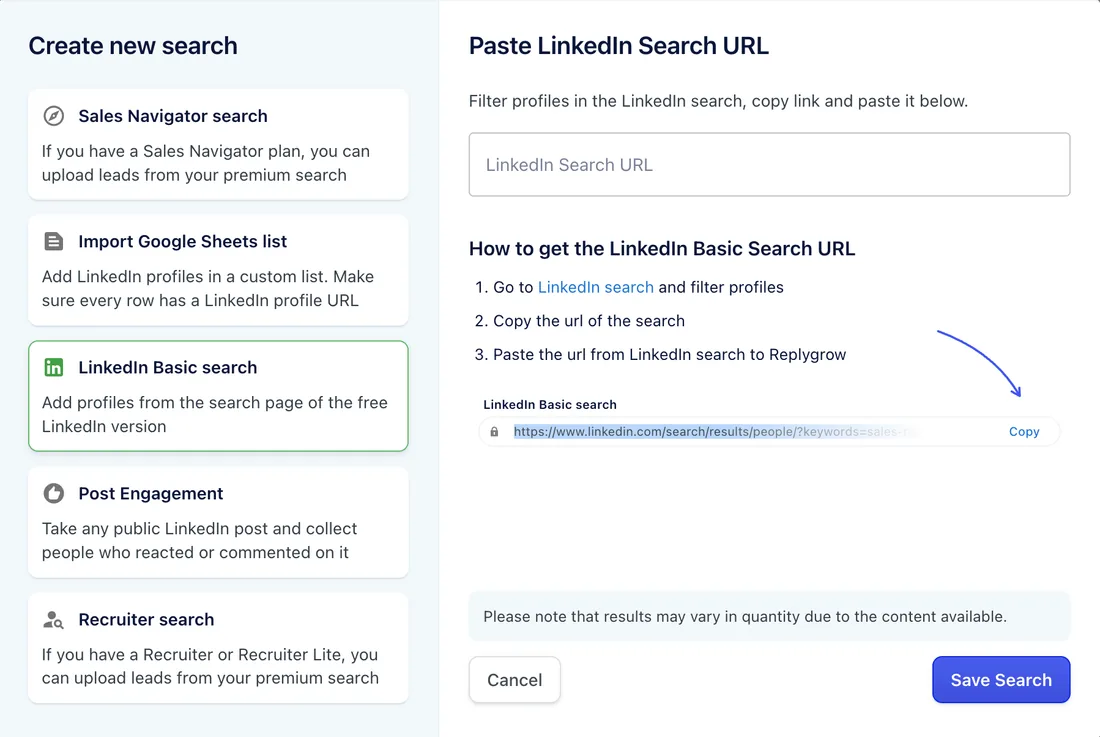
Go to Search and click Create search.
Choose LinkedIn Basic search and paste the URL into LinkedIn Search URL.
Click Save Search.
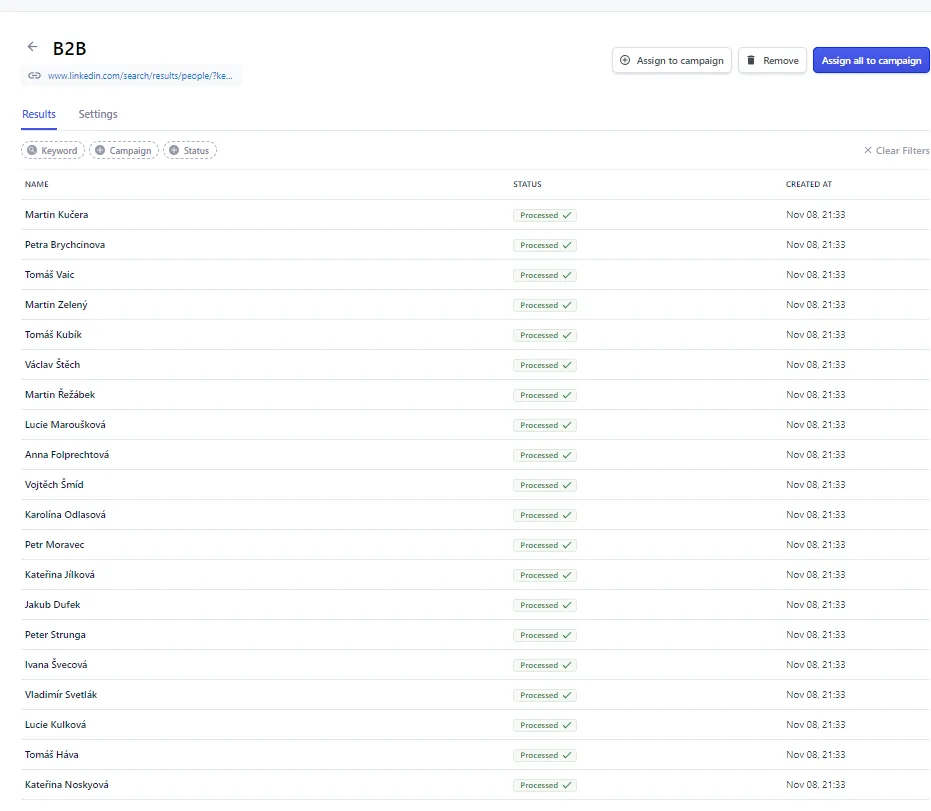
Replygrow processes the search in the background. When it finishes, the search list shows how many people were imported.
Limits and tips
- Up to 1,000 people per search. LinkedIn shows at most 1,000 results for a basic search, so that is the most any tool can import from one.
- Need more than 1,000? Split the search into smaller ones, for example one per country or per job title. Then add them all to the same campaign.
- Free LinkedIn accounts can hit LinkedIn's monthly commercial use limit on searches. If that happens, wait for the limit to reset or use a Sales Navigator search instead.
- Reuse the search. A search belongs to your workspace, so you can add it to several campaigns or use it with multiple LinkedIn accounts.
Next step
Add the search to a campaign: on the Leads step, choose Existing Search list. See Create a campaign.